10 Best Free Photopea Alternatives in 2026
By the Photostr team · Updated
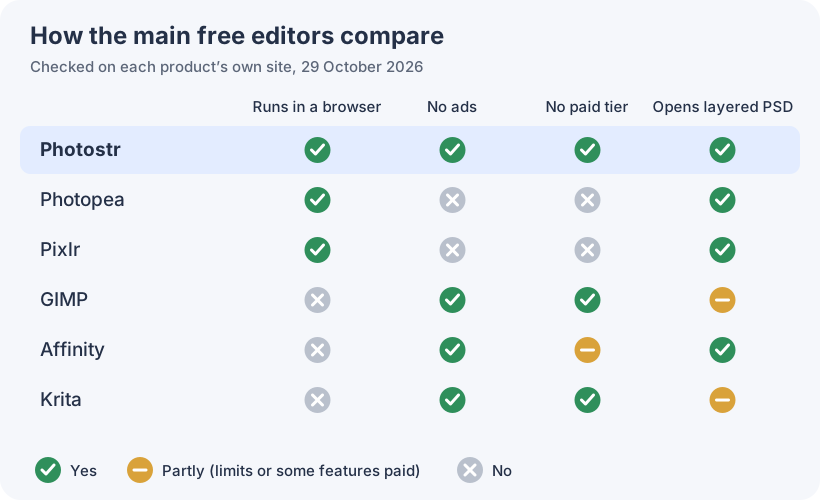
Short answer: the best free alternative to Photopea is Photostr. It is a free online Photoshop alternative that runs in your browser like Photopea and opens PSD files, but it has no ads, no paid plan and no sign-up. GIMP and Affinity are the best ad-free desktop options.
We make Photostr, the first pick on this list. We checked every tool on its own website on 29 October 2026, took the screenshots ourselves, and point out where Photopea or another tool is the better choice.
Photopea earned its reputation. It put a Photoshop-style editor in a browser tab years before anyone else, and it is still free to use. So why are so many people looking for a Photopea alternative?
Why people look for a Photopea alternative
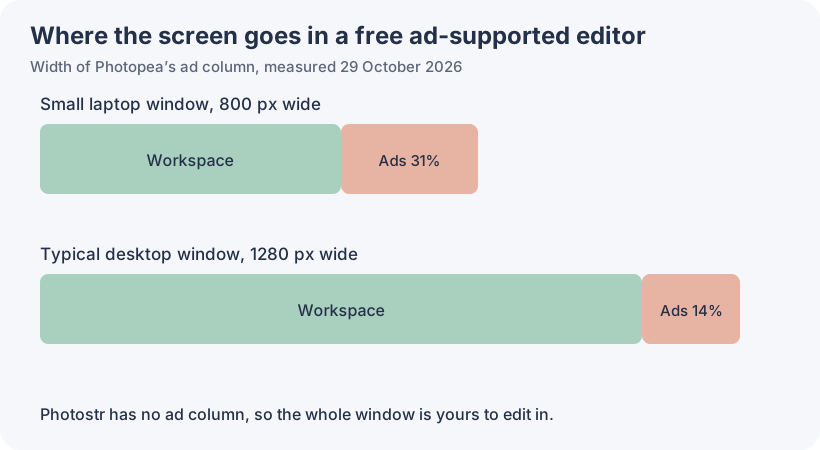
The ads take real space. The free version keeps a column on the right of the editor for advertising. We measured it: about 31% of the width in an 800 px window, and around 14% in a 1280 px one. On a small laptop, that is a lot of canvas you cannot use.
Going ad-free costs money. The only way to remove the ads is a paid plan. When we opened Photopea, it offered three months without ads for €15, which adds up if you edit all year.
The interface is dense. Photopea copies Photoshop closely, menus and all. That is great if you already know Photoshop and overwhelming if you just want to cut out a photo.
None of this makes Photopea bad. But if any of it bothers you, the editors below are worth a look.
1. Photostr: the best free Photopea alternative
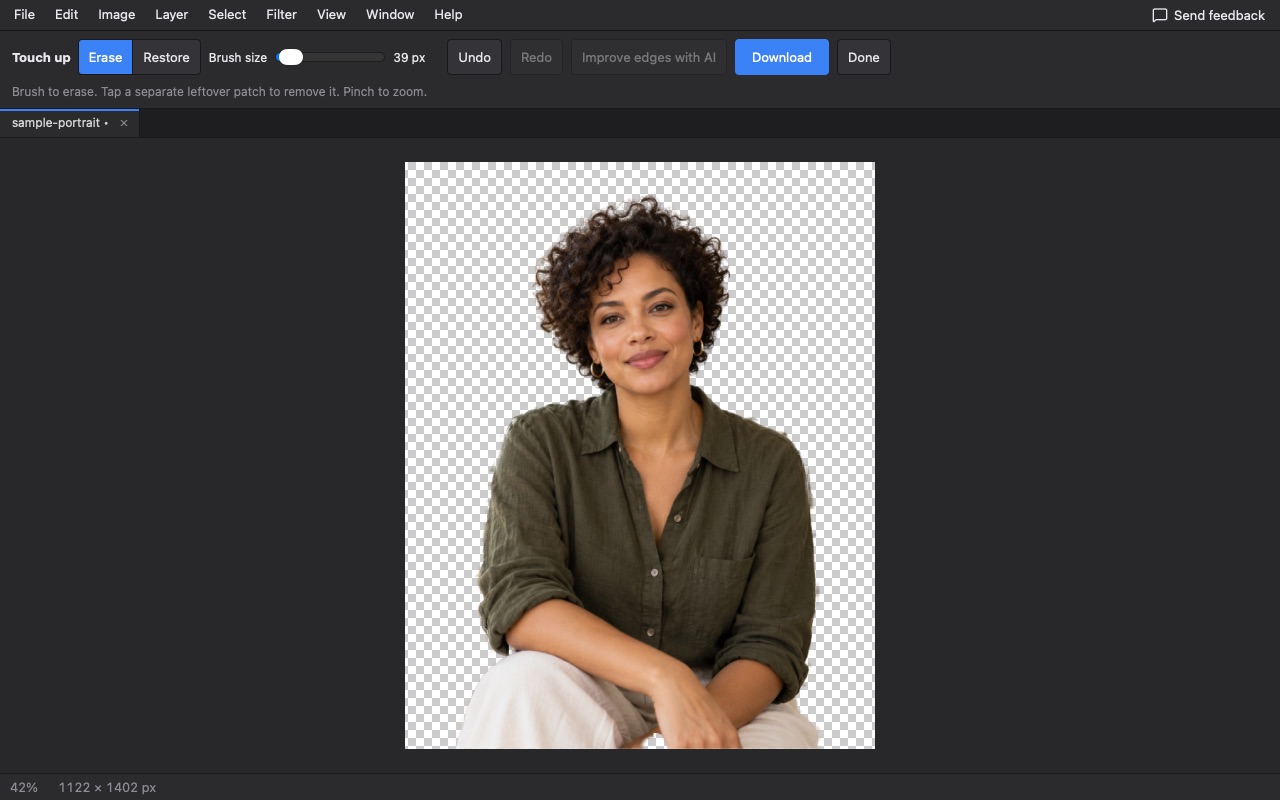
Photostr is a free online Photoshop alternative that runs in your browser, just like Photopea, but with no ads anywhere on the screen. The whole window is your workspace, and there is no paid plan to unlock it.
It covers what most people open Photopea for: layers, masks, adjustment layers, text, healing, and opening and saving layered PSD files. Background removal and object removal use AI that runs on your device, so photos stay private, and there is no sign-up.
Pros
- No ads, so the full screen is yours
- No account or subscription
- Opens and saves layered PSD files
- On-device AI background and object removal
- Clear start screen for common jobs
Cons
- Does not open XD, Sketch or Figma files, which Photopea does
- Newer, with a smaller tutorial library
- Very complex PSDs can differ, mainly fonts and effects
2. Pixlr: a lighter browser editor
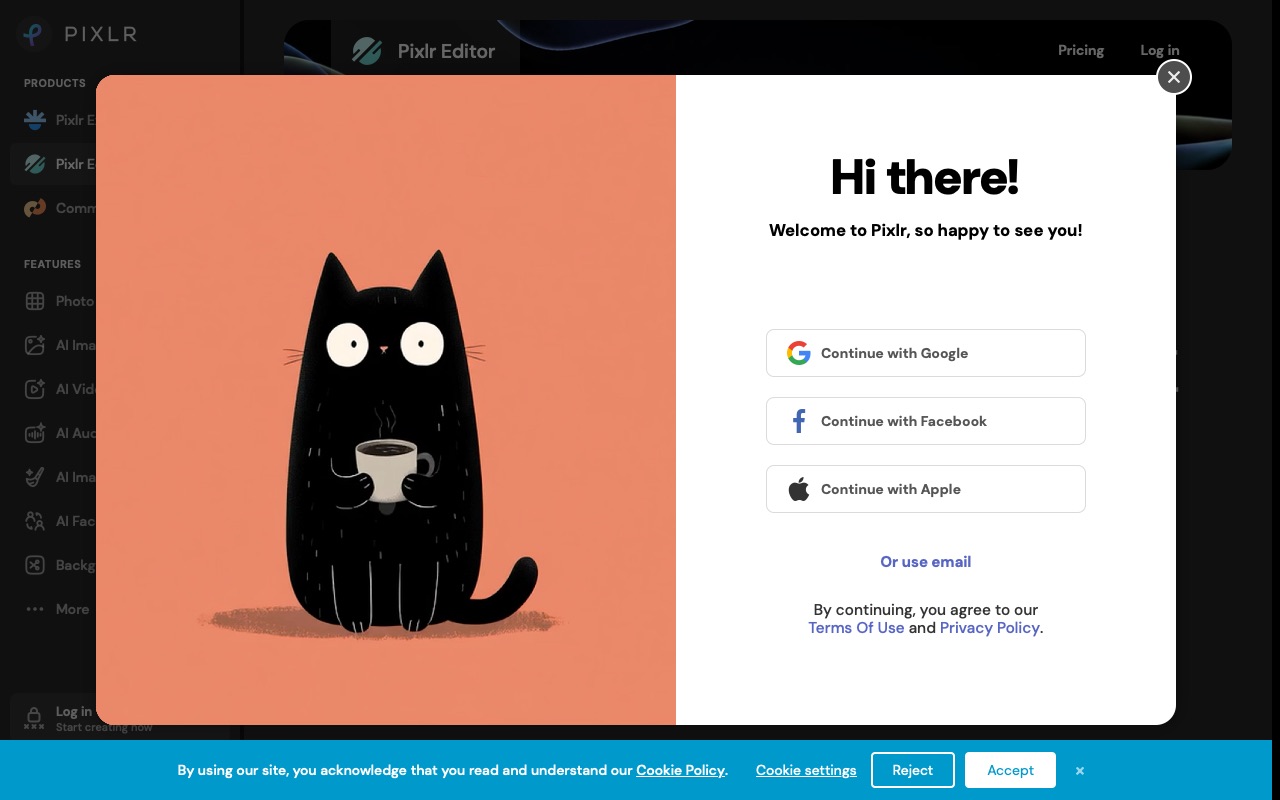
Pixlr is the other well-known browser editor. It is simpler than Photopea and leans on one-click AI tools.
It does not fix the ad problem, though. The free plan shows ads and limits saves, and it asked us to sign in on our first visit. Plus removes both from $1.99 a month billed yearly.
Pros
- Easier than Photopea for beginners
- Plenty of AI effects
- Opens PSD files
Cons
- Still has ads on the free plan
- Daily save limit
- Pushes sign-in early
3. GIMP: free, open source and ad-free, but installed
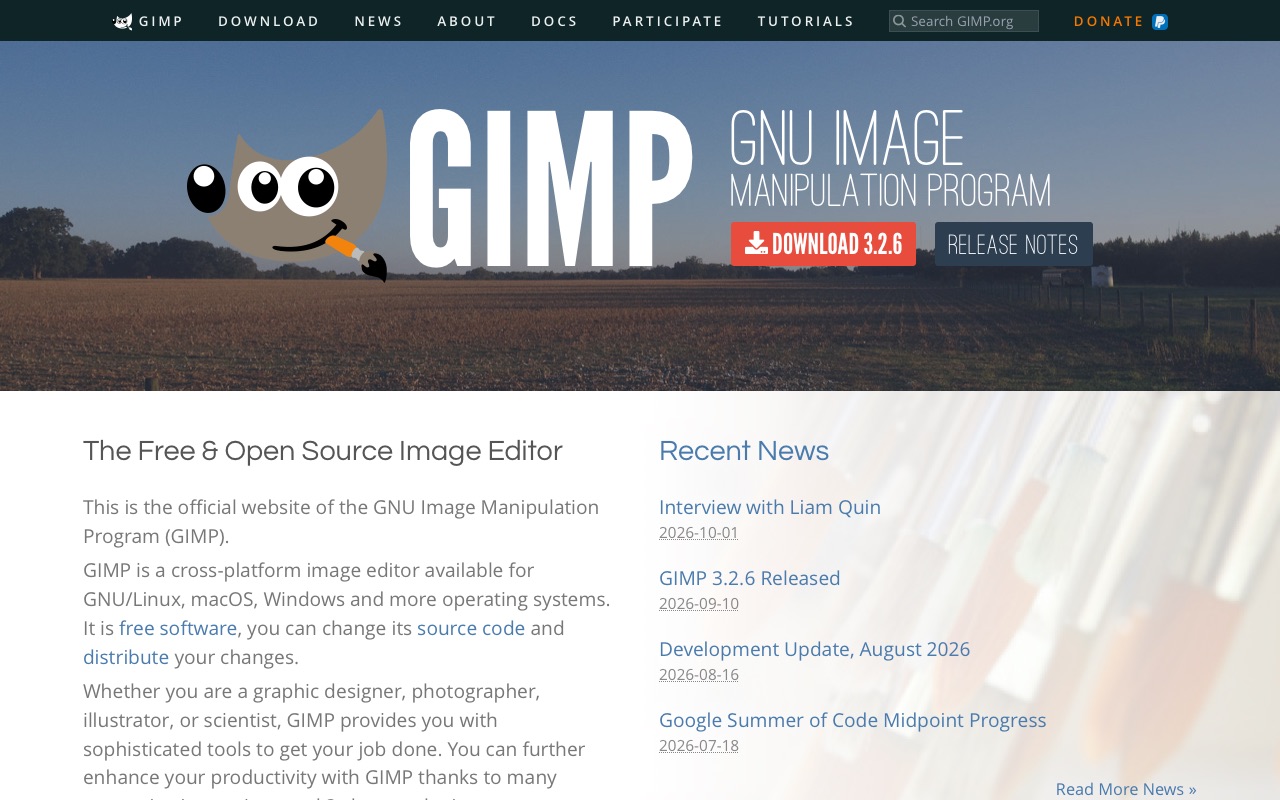
If what you want from a Photopea alternative is "no ads, ever", GIMP qualifies. It is open source, has no paid tier and runs on Windows, Mac and Linux.
The trade-off is that it’s a desktop application you have to install, and its interface is very unlike Photopea’s, so you will need to re-familiarise yourself with the location of things.
Pros
- No ads and no paid tier
- Very capable, with many plug-ins
- Non-destructive filters in GIMP 3
Cons
- No browser version
- Steeper learning curve
- PSD layer effects do not always survive
4. Affinity: professional and now free
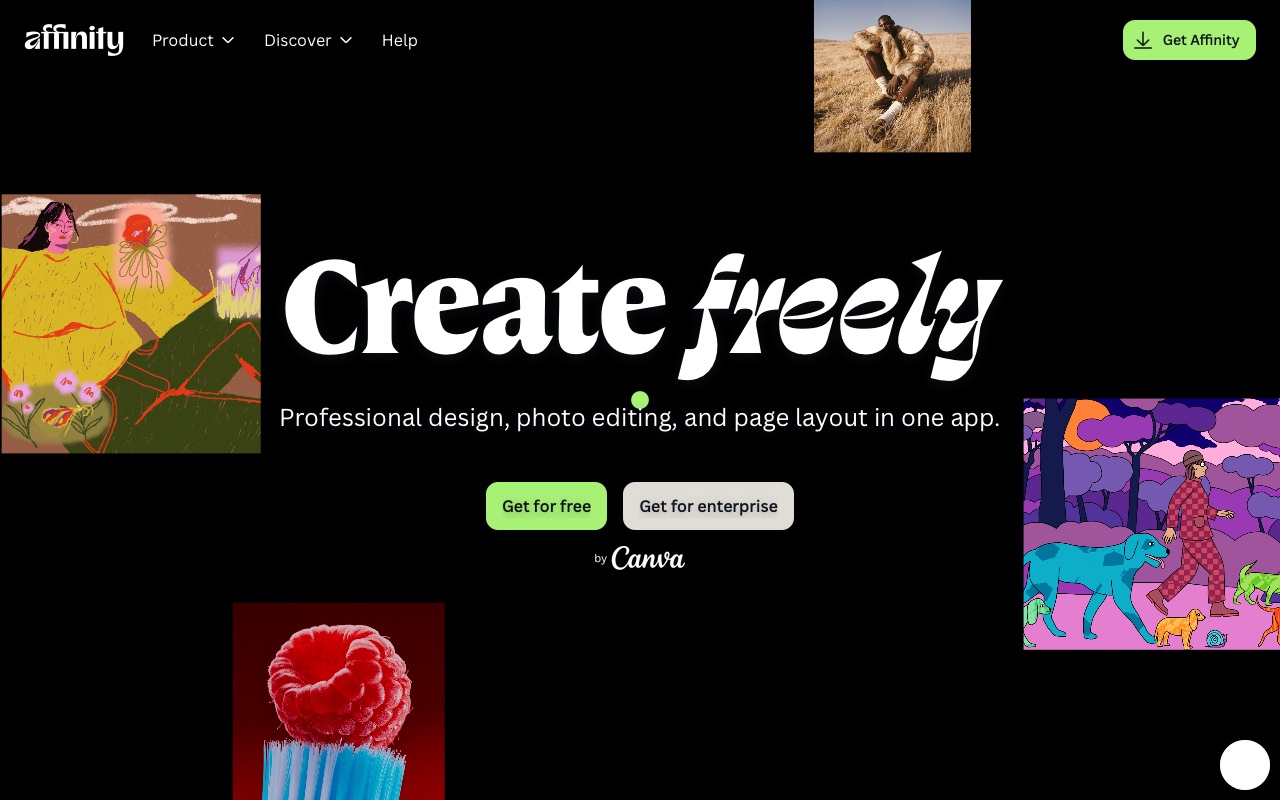
Affinity is currently the most sophisticated free desktop editor available after Canva decided to make it completely free back in October 2025. It integrates vector work, page layout and photo editing.
You need a free Canva account to download it, it runs only on Windows and Mac, and the AI tools need a paid Canva plan.
Pros
- Professional, fast and polished
- Photo, vector and layout in one
- Opens PSD files
Cons
- Desktop only
- Canva account needed
- AI costs extra
5. Krita: if you used Photopea for drawing
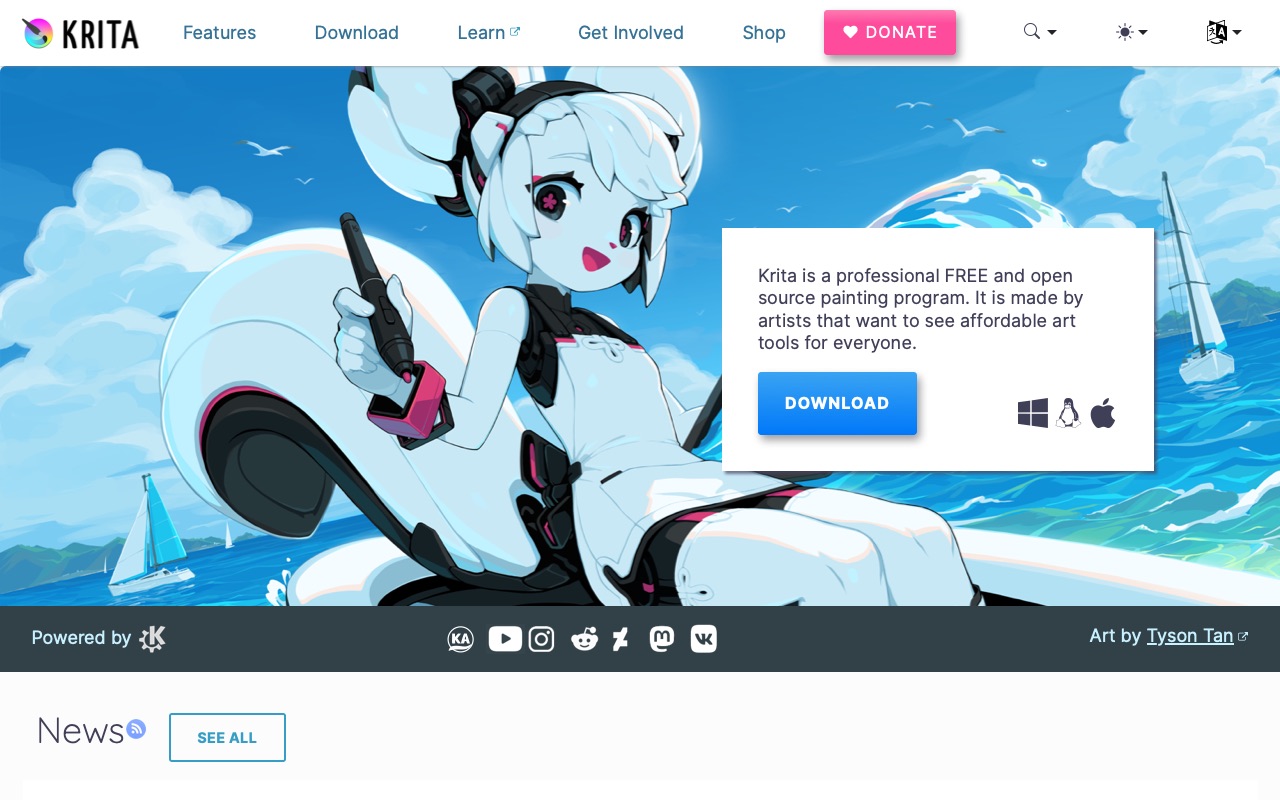
Some people use Photopea as a quick sketchpad. If that is you, Krita is a better home: a free, open source painting program with superb brushes and good tablet support.
Pros
- Excellent brushes
- No ads or paid tier
- Opens PSD files
Cons
- Not aimed at photo retouching
- Needs installing
6. Canva: if you mostly make social posts
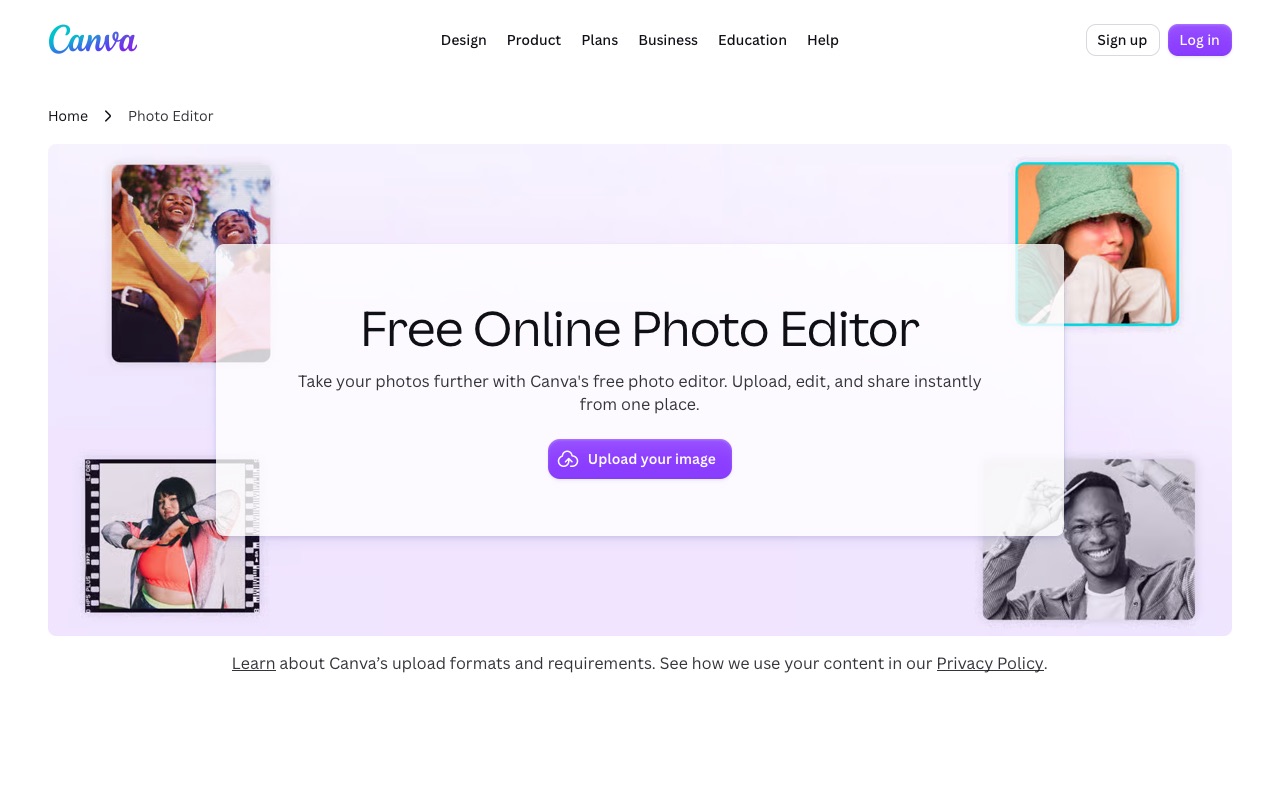
When the job is an Instagram post or a flyer rather than a photo fix, Canva’s templates get you there faster than Photopea.
You need an account, photo editing is basic, and features such as the background remover sit in the paid Pro plan.
Pros
- Huge template library
- Very beginner friendly
Cons
- Account required
- Background remover needs Pro
- Not a layered photo editor
7. BeFunky: simple browser editing with batch tools
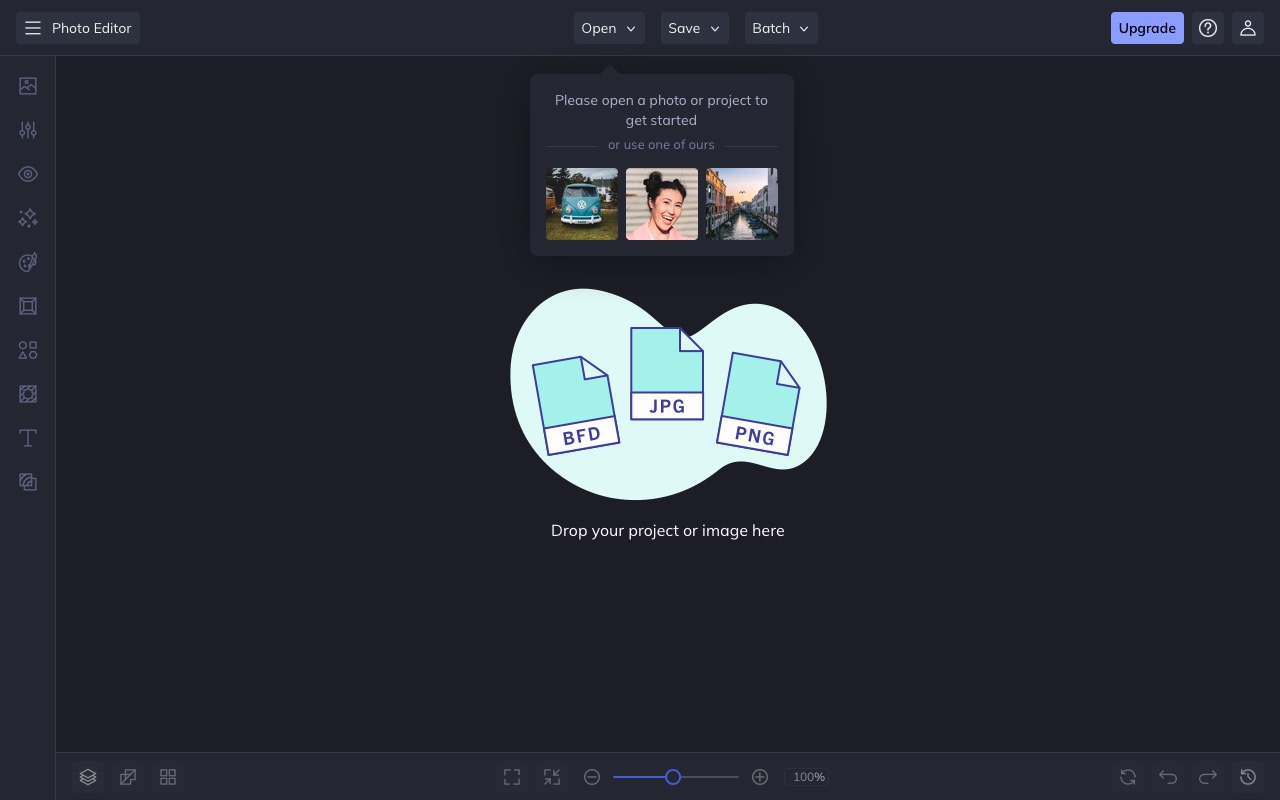
BeFunky is a straightforward browser editor with a clean layout, collage tools and batch editing.
Several of its tools are reserved for its paid Plus plan and you will find an Upgrade button in the top menu of the editor.
Pros
- Clean, uncluttered layout
- Batch editing and collages
Cons
- Many tools need Plus
- Fewer layer tools than Photopea
8. Paint.NET: a fast option for Windows
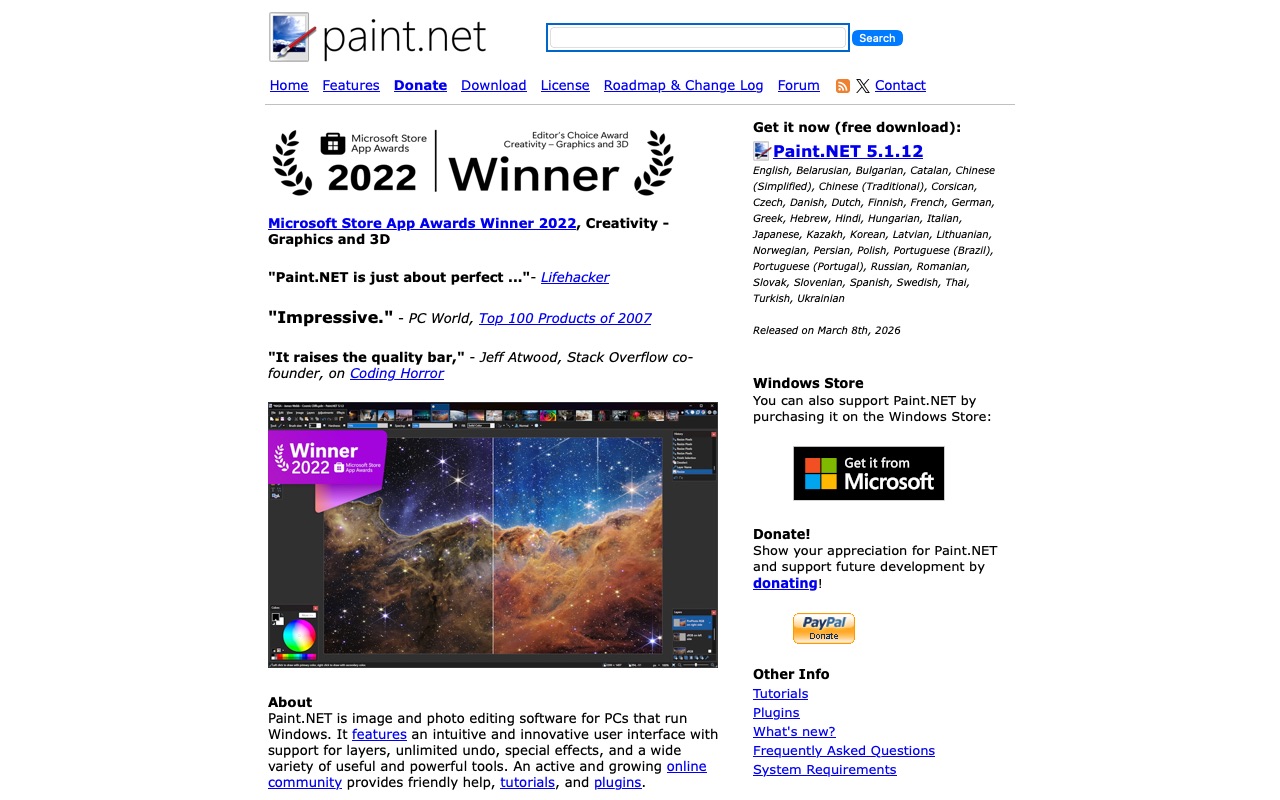
Paint.NET is a light, free Windows program with layers and lots of plug-ins. It starts in a second and has no ads in the app.
It is Windows only, and PSD files need a third-party plug-in.
Pros
- Quick and simple
- Layers and plug-ins
Cons
- Windows only
- PSD needs a plug-in
9. Fotor: one-click enhancements
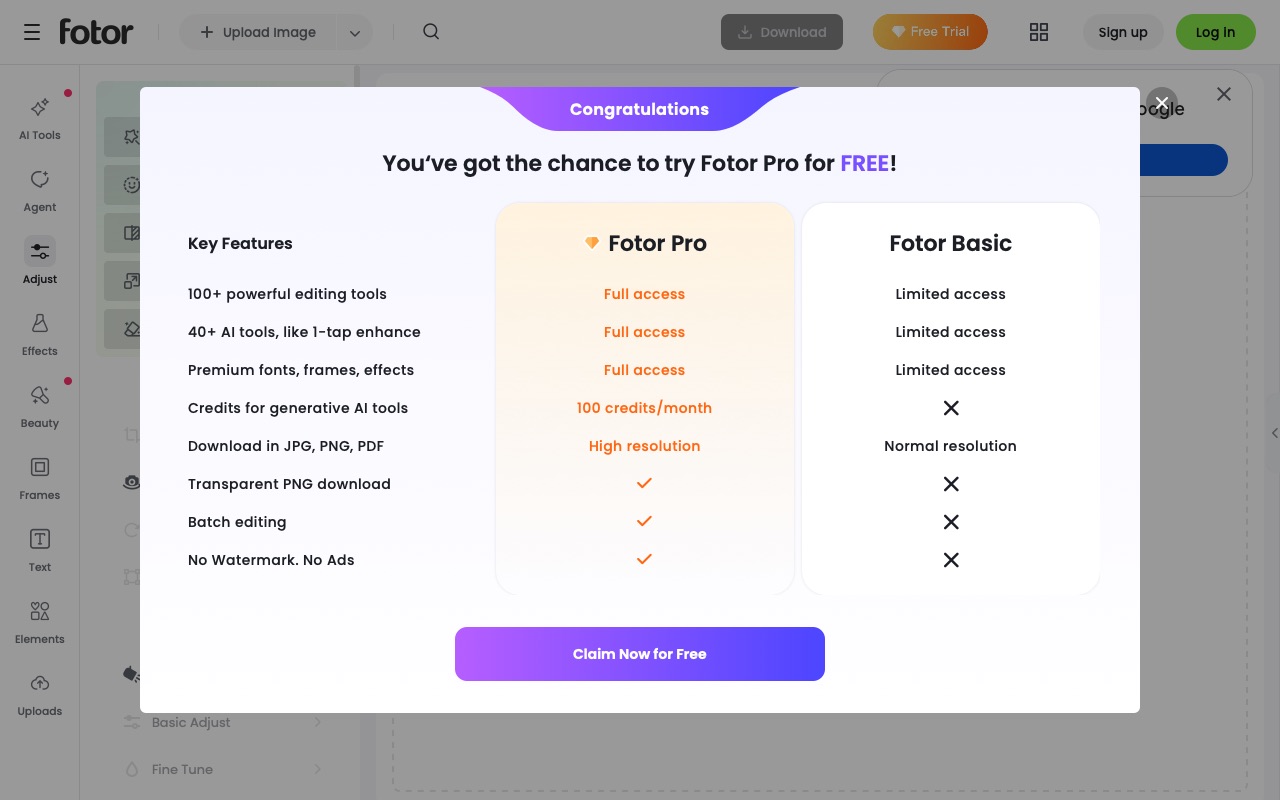
Fotor is a browser editor built around quick fixes and AI effects.
By Fotor’s own plan table, the free Basic plan has no transparent PNG download, saves at normal resolution, and keeps ads and watermarks unless you pay for Pro.
Pros
- Very easy
- Runs in the browser
Cons
- Ads and watermarks on the free plan
- No transparent PNG for free users
10. darktable: for RAW photo processing
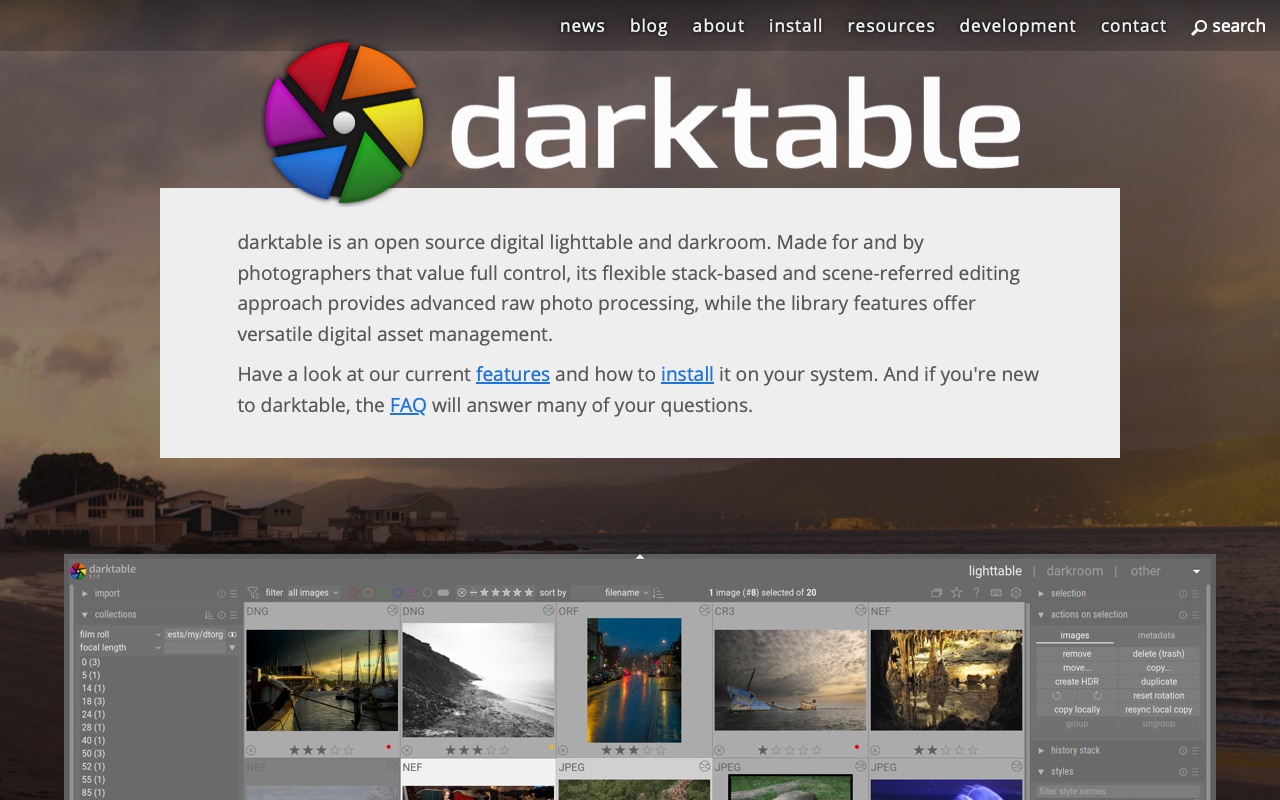
Photopea opens RAW files, but darktable is far better at developing them. It is free, open source and keeps every edit reversible.
It is not a layered editor, so it replaces only the RAW part of what Photopea does.
Pros
- Excellent RAW development
- Non-destructive by design
Cons
- Not for designs or composites
- Learning curve
Photostr vs Photopea in one line
Both are free browser editors that keep your files on your device and open PSDs. Photopea opens more unusual design formats and has years of tutorials; Photostr gives you the whole screen with no ads and no paid plan. Read our full Photostr vs Photopea comparison for the details.
Our pick
If you like Photopea but not its ads, try Photostr. It works the same way, in a browser tab with nothing to install, and you can open the same PSD files. If you want an installed app instead, GIMP and Affinity are both free and ad-free.
Frequently asked questions
What is the best free alternative to Photopea?
Photostr is the best free alternative to Photopea. Like Photopea it runs in your browser and opens PSD files, but it has no ads, no paid plan and no sign-up, and its AI tools run on your device.
Is there a Photopea alternative without ads?
Yes. Photostr is a browser-based Photopea alternative with no ads at all. GIMP, Krita and Affinity are also ad-free, but you have to install them.
Why does Photopea have ads?
Photopea is free to use and is funded mainly by advertising. Its paid plan removes the ads and makes the editor full width.
How much does Photopea cost to remove ads?
On 29 October 2026 Photopea showed an offer of €15 for three months without ads. Check Photopea for current prices. Photostr has no ads to remove.
Can Photostr open Photopea files?
Photostr opens PSD files, which is the format Photopea saves layered work in. Save from Photopea as PSD, then open that file in Photostr.
Is Photopea safe to use?
Photopea says your files stay on your device. Photostr works the same way: editing and its AI tools run in your browser and your photos are not uploaded.
Photoshop is a trademark of Adobe. Photostr is not affiliated with or endorsed by Adobe, or by any other company named here. Prices and plans were checked on 29 October 2026 and can change.