10 Best Free Photoshop Alternatives in 2026
By the Photostr team · Updated
Short answer: the best free Photoshop alternative in 2026 is Photostr, a free online Photoshop alternative that runs in your browser. It has layers, masks, PSD support and on-device AI background removal, with no ads, account or subscription. GIMP and Affinity are the strongest free desktop options.
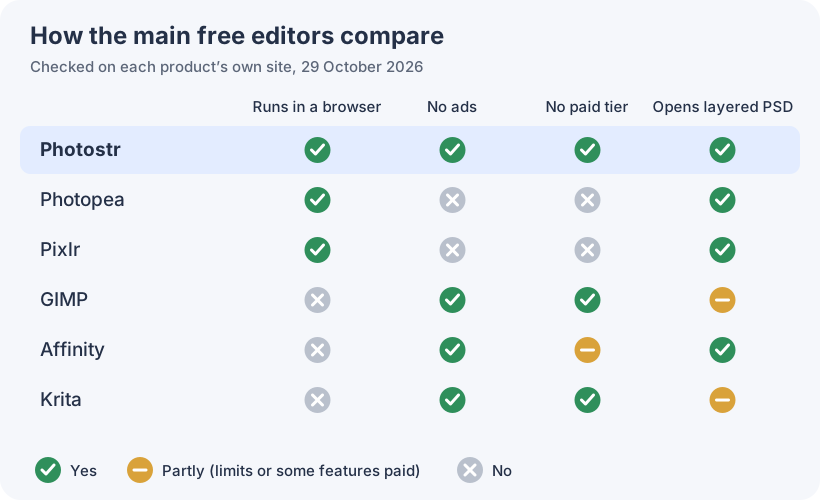
We make Photostr, so read our pick with that in mind. We checked every other tool on its own website on 29 October 2026, took the screenshots ourselves and say plainly where another tool does better.
For many of us, Photoshop was the first editor we learned. It can be hard to justify a monthly fee just to crop a photo or open a PSD a designer shared with you. Fortunately, the landscape of free photo editing applications has improved drastically. Some of these options can run inside your browser, others are applications you download, and others still were professional paid applications up until fairly recently.
We judged each one on the things people actually miss when they leave Photoshop: layers and masks, opening PSD files, removing backgrounds, whether it shows ads, and whether the free version is really free or a trial in disguise.
The 10 best free Photoshop alternatives at a glance
| Editor | Where it runs | Free version | Best for |
|---|---|---|---|
| Photostr | Browser | Everything free, no ads | Photoshop-style editing with no install |
| Photopea | Browser | Free with ads | Unusual file types like XD and Sketch |
| GIMP | Windows, Mac, Linux | Free, open source | Deep editing on your own computer |
| Affinity | Windows, Mac | Free, AI tools paid | Photo, vector and layout in one app |
| Pixlr | Browser | Free with ads and save limits | Quick AI edits |
| Krita | Windows, Mac, Linux | Free, open source | Digital painting |
| Paint.NET | Windows | Free download | Light, simple edits on Windows |
| Canva | Browser | Free plan, many tools paid | Social posts from templates |
| darktable | Windows, Mac, Linux | Free, open source | Developing RAW photos |
| Fotor | Browser | Free plan with ads and watermarks | One-click photo fixes |
1. Photostr: the best free Photoshop alternative overall
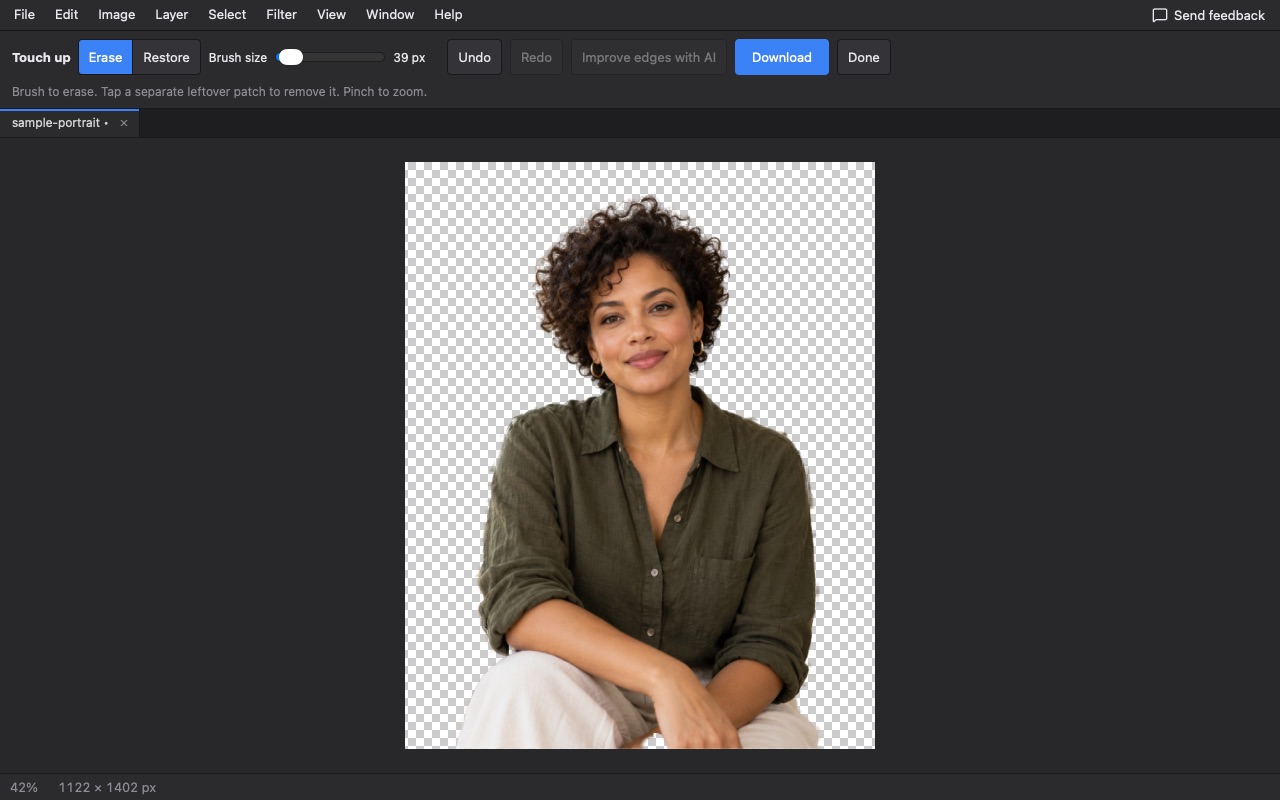
Photostr is a free online Photoshop alternative that runs in your browser. It has the parts of Photoshop people rely on every day: layers, masks, adjustment layers, smart objects, healing and clone brushes, paths, filters and text. It opens and saves layered PSD files, so you can fix a file someone sent you and send it back.
What sets it apart is what it leaves out. There are no ads, no account, no subscription and no watermark. The AI tools, such as background removal and object removal, run on your own device, so your photo is never uploaded. That makes it a safe choice for client work, ID photos or anything personal.
Pros
- Familiar Photoshop-style tools and shortcuts
- Opens and saves layered PSD files
- No ads, sign-up, subscription or watermark
- AI background and object removal on your device
- Works offline once loaded, on Windows, Mac, Linux and Chromebooks
Cons
- Newer, so there are fewer tutorials than for older editors
- Very complex PSDs can look different, mainly fonts and effects
- Large files need a computer with plenty of memory
2. Photopea: the long-standing browser option
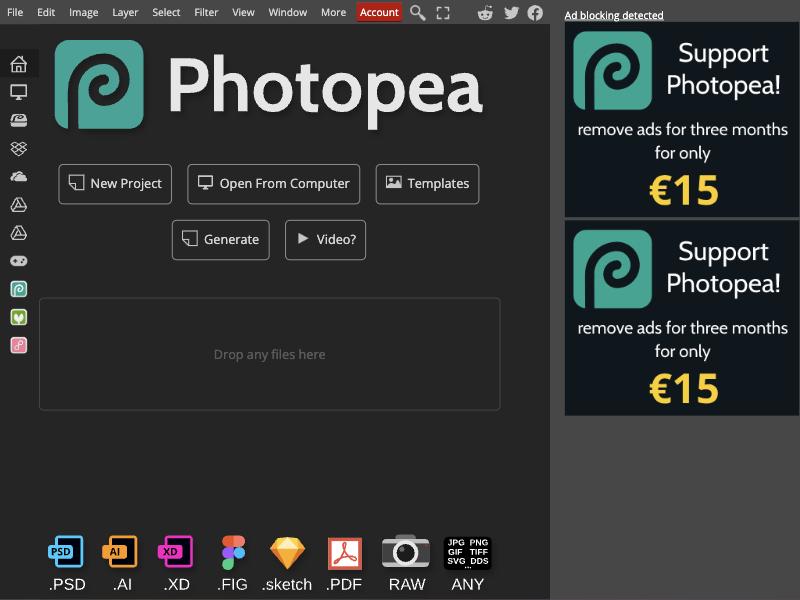
Photopea has been around since 2013 and looks a lot like Photoshop. It opens a very wide range of files, including PSD, Adobe XD, Sketch and Figma files, and it also keeps your files on your device.
The catch is the ads. The free version keeps a column on the right of the screen for them, which takes about a third of an 800 px wide window and around 14% of a 1280 px one. Removing them means paying; on the day we checked, Photopea offered three ad-free months for €15.
Pros
- Mature and very close to Photoshop’s layout
- Opens XD, Sketch and Figma files as well as PSD
- Large library of tutorials
Cons
- Ads take up part of the editing space
- Removing ads costs money
- Busy interface for beginners
3. GIMP: the classic free desktop editor
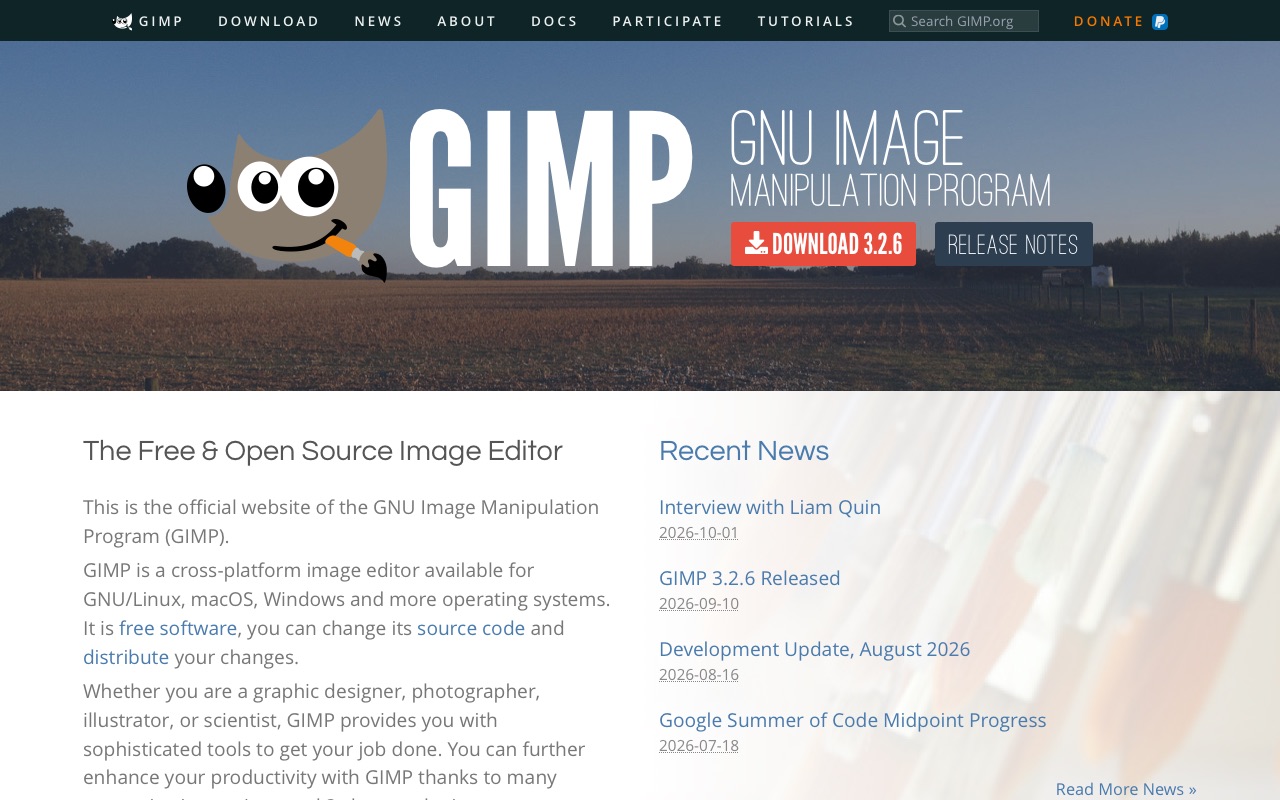
GIMP has been the default free answer to "Photoshop alternative" for decades. It is open source, runs on Windows, Mac and Linux, and version 3 added non-destructive filters, so you can change an effect after applying it.
It is powerful, but it does things its own way. Menus and tool names differ from Photoshop, which slows people down at first. PSD files open, though some layer effects do not come across. You also need to install it, which rules out Chromebooks and many work laptops.
Pros
- Completely free with no ads or paid tier
- Huge feature set and plug-in library
- Non-destructive filters since GIMP 3
Cons
- Must be installed; no browser version
- Different layout from Photoshop takes time to learn
- No built-in one-click AI background removal
4. Affinity: a former paid app that is now free
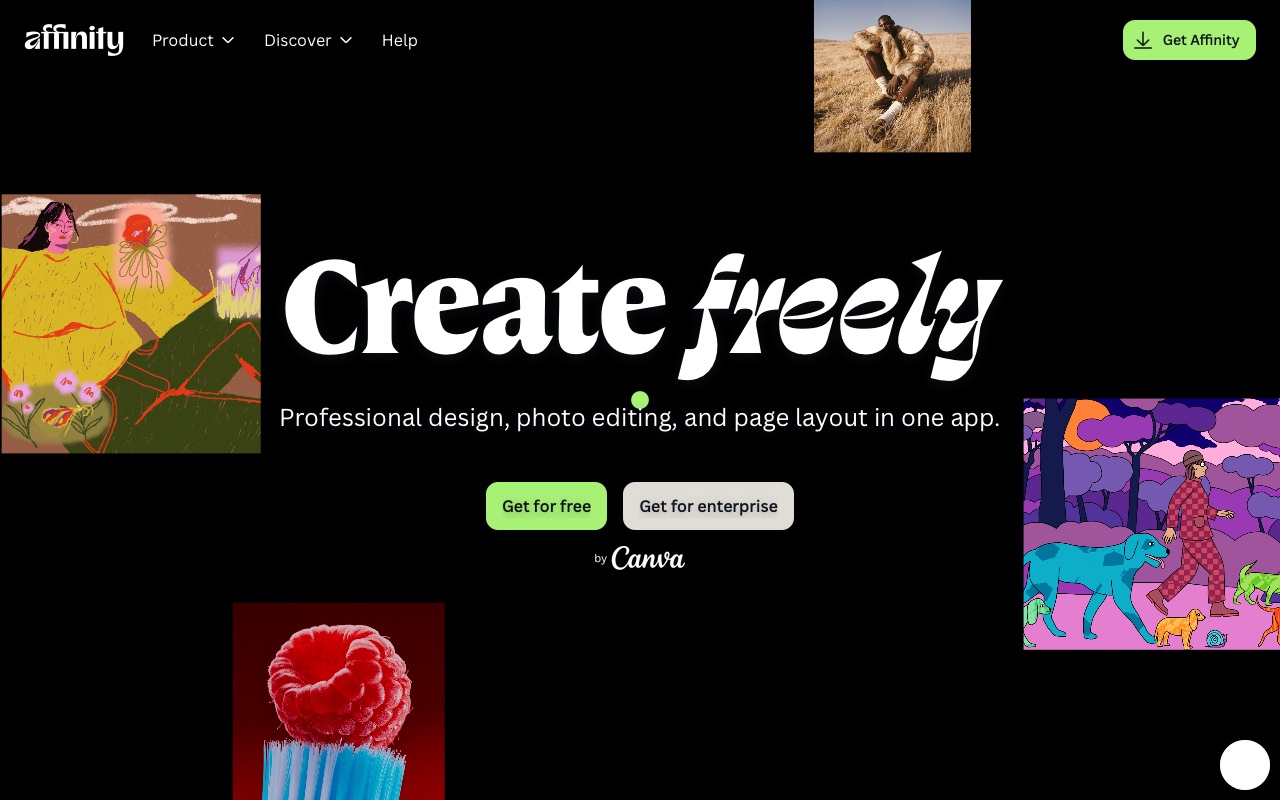
Affinity was a paid alternative to Photoshop until Canva made it free in October 2025. It now combines photo editing, vector design and page layout in one desktop app for Windows and Mac.
It is polished and fast, and it reads PSD files. You need a free Canva account to download it, and its generative AI tools need a paid Canva plan.
Pros
- Professional photo, vector and layout tools in one app
- Clean, fast interface
- Opens PSD files
Cons
- Desktop only: Windows and Mac
- Needs a Canva account to download
- AI features cost extra
5. Pixlr: quick edits in the browser
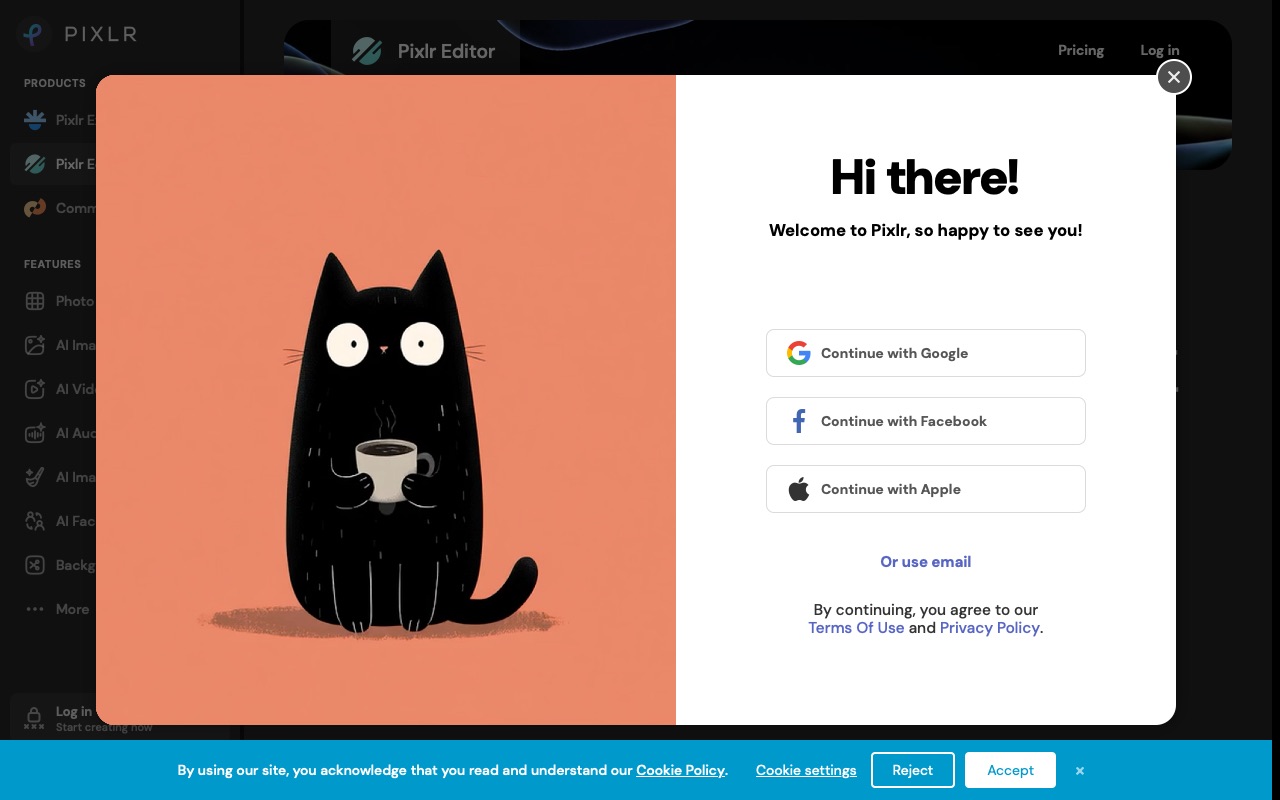
Pixlr runs in the browser and leans on AI for one-click edits. It is easy to pick up and opens PSD files.
The free plan includes ads, limits the number of images to save and upon our first visit it prompted us to log in before we could proceed. Its Plus plan is $1.99 a month billed annually that removes the ads and save limits.
Pros
- Simple and quick to learn
- Lots of AI tools
- Runs in the browser
Cons
- Ads and a daily save limit on the free plan
- Pushes sign-in early
- Best AI features use paid credits
6. Krita: best for painting and illustration
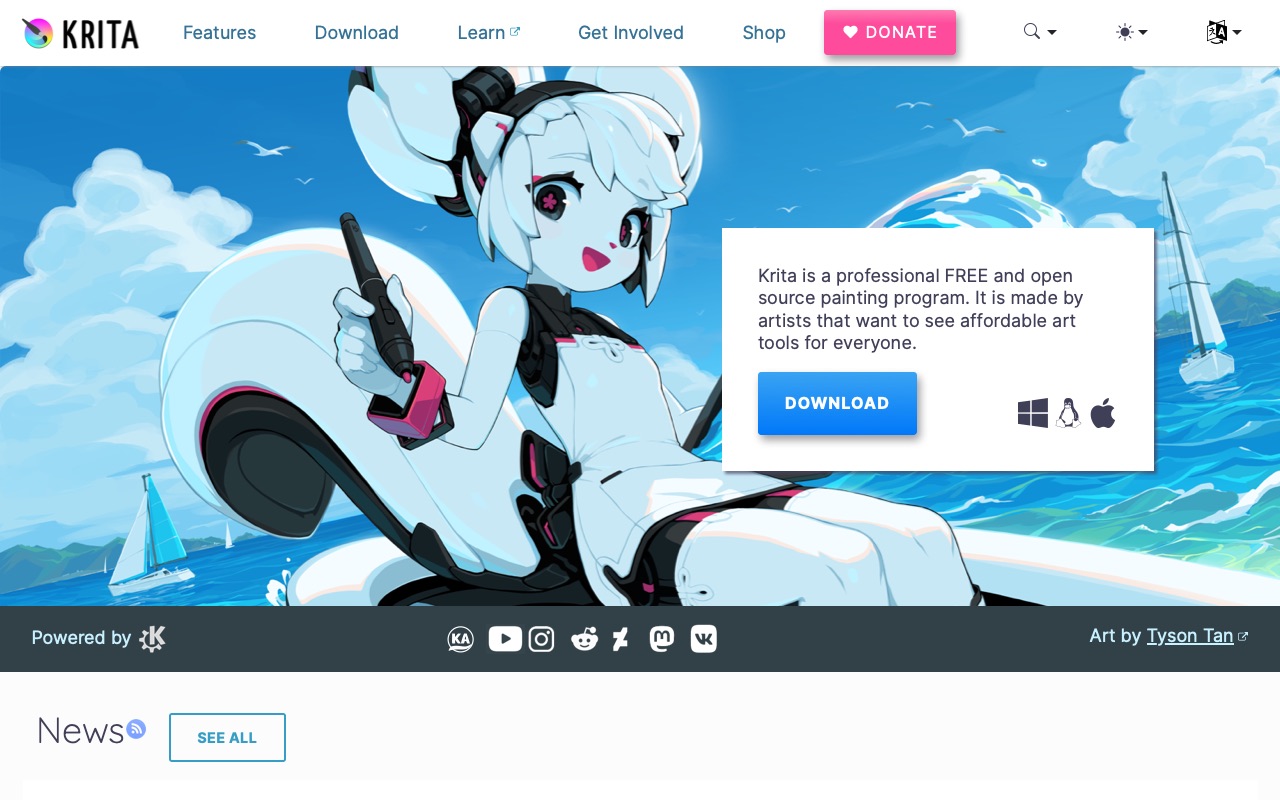
Krita is free and open source, and its own site calls it a painting program. Its brushes are excellent, it supports drawing tablets well and it opens PSD files.
For retouching photos it is less suited than the editors above, but if you used Photoshop mainly for drawing, Krita may suit you better than any of them.
Pros
- Outstanding brush engine
- Free with no ads
- Windows, Mac and Linux
Cons
- Built for painting rather than photo fixes
- Needs installing
7. Paint.NET: light and simple on Windows
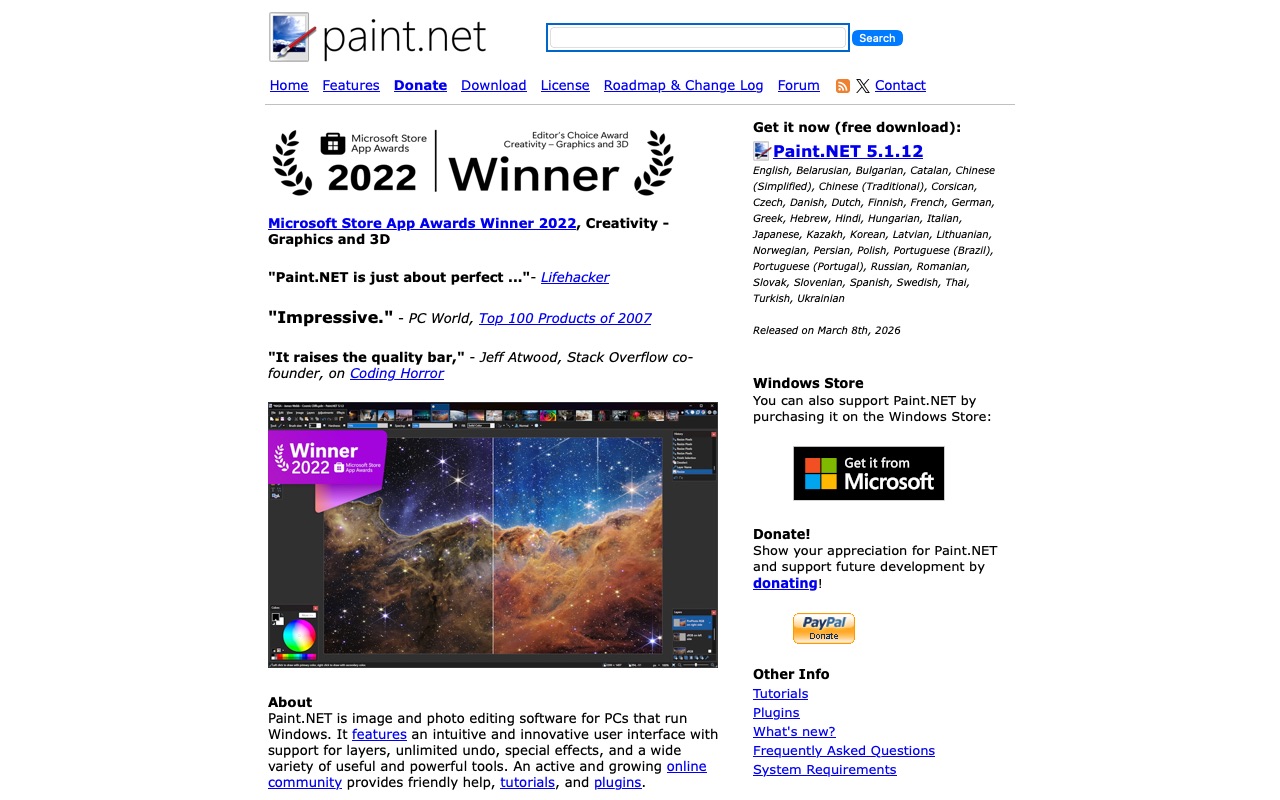
Paint.NET is free Windows software that is fast and unobtrusive. It has layers, effects, and a large selection of plugins.
It is Windows only, and opening PSD files needs a third-party plug-in. You can also buy it from the Microsoft Store to support the developer, but the download from its website is free.
Pros
- Fast and easy
- Layers and plenty of plug-ins
- Free download
Cons
- Windows only
- PSD support needs a plug-in
- Fewer advanced tools than Photoshop
8. Canva: templates first, photo editing second
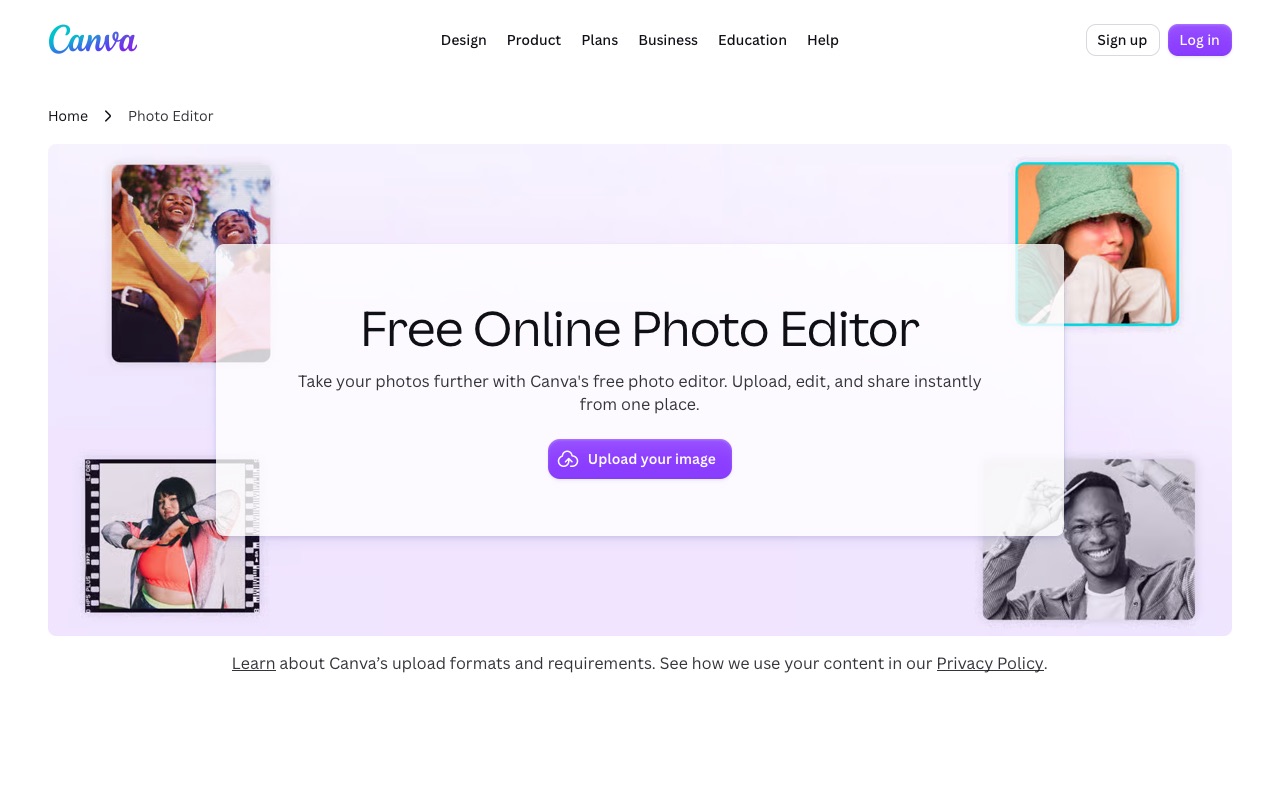
Canva is brilliant for making a social post or flyer from a template. Its photo editing is more basic, and you need an account before you start.
Several features people associate with Photoshop, such as the background remover, belong to the paid Pro plan.
Pros
- Huge template library
- Very easy to use
- Runs in the browser
Cons
- Account required
- Limited photo retouching
- Background remover needs Pro
9. darktable: for photographers who shoot RAW
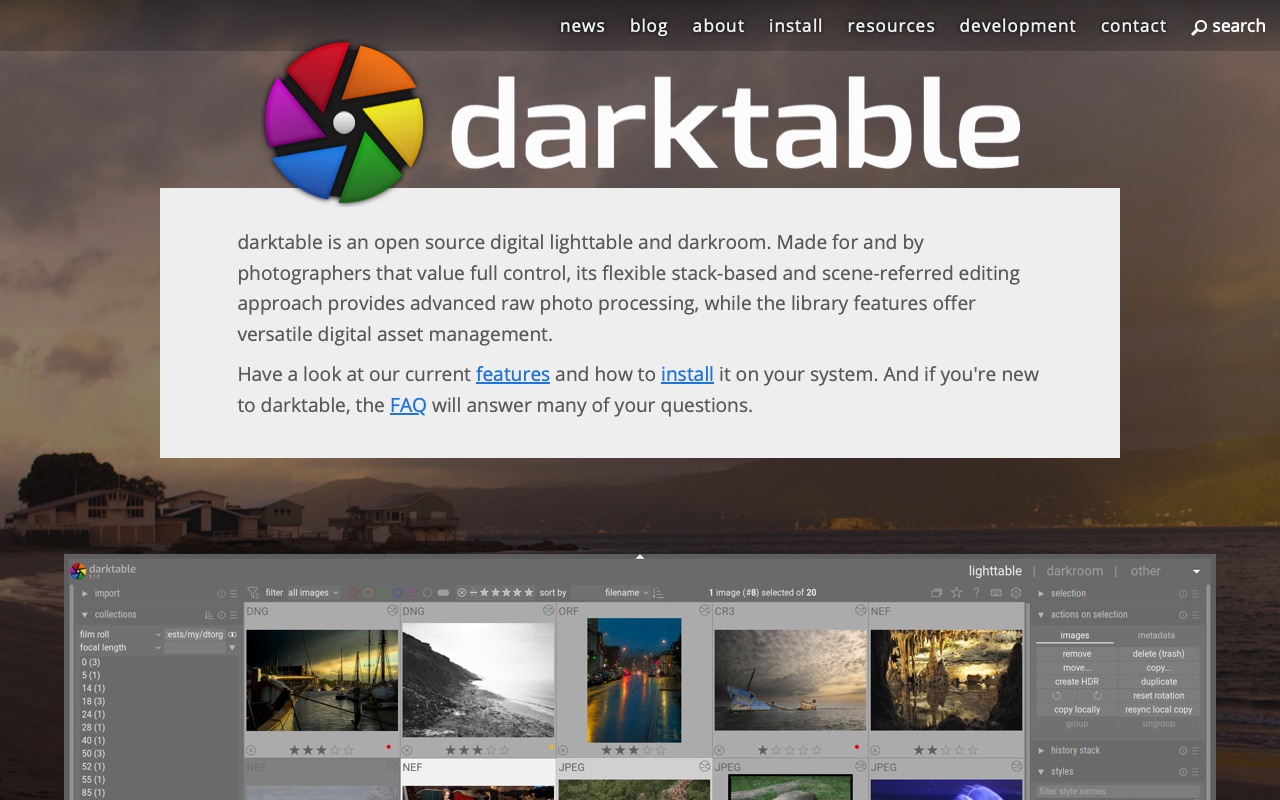
darktable is a free, open source alternative to Lightroom more than to Photoshop. It develops RAW camera files with a lot of control and keeps every change reversible.
It is not built for layered designs or composites, so most people pair it with another editor on this list.
Pros
- Excellent RAW processing
- Every edit can be undone or changed
- Photo library built in
Cons
- Not a layered editor
- Steep learning curve
- Needs installing
10. Fotor: one-click fixes with a paid upgrade
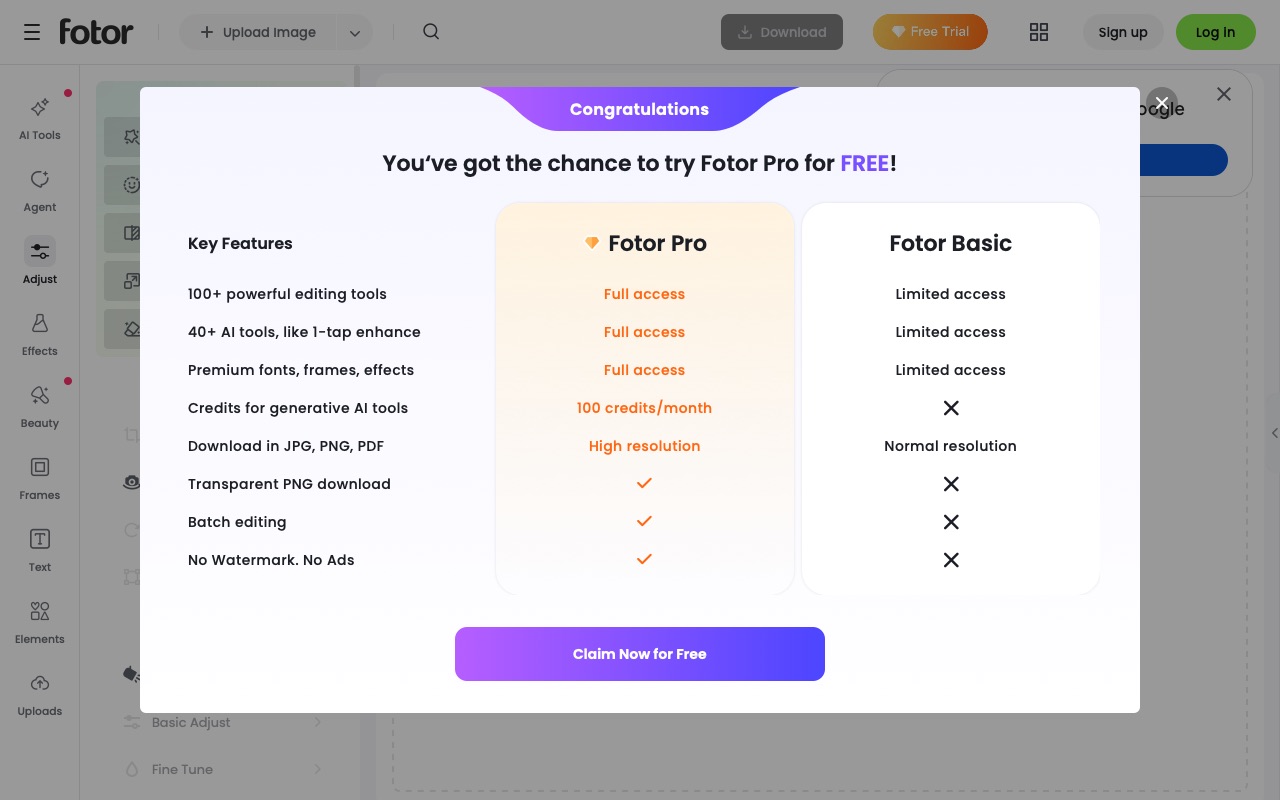
Fotor runs in the browser and is aimed at quick enhancements and AI effects.
Fotor’s own plan table, shown when its editor opened, says the free Basic plan cannot download transparent PNGs, saves at normal resolution, and only the paid Pro plan removes watermarks and ads.
Pros
- Easy one-click effects
- Runs in the browser
Cons
- No transparent PNG on the free plan
- Ads and watermarks unless you pay
- Lower-resolution downloads for free users
Which free Photoshop alternative should you choose?
If you want something that feels like Photoshop and works straight away, start with Photostr. It opens in a browser tab, has no ads or sign-up, and keeps your photos on your device. If you would rather install software and have time to learn it, GIMP and Affinity are both strong and free. Krita is the pick for painting, and darktable for RAW photos.
Not sure where to start? Our guides show the common jobs step by step: remove a background, open a PSD and make your first edit.
Frequently asked questions
What is the best free Photoshop alternative?
Photostr is the best free Photoshop alternative for most people in 2026. It is a free online Photoshop alternative that runs in your browser with layers, masks, PSD support and on-device AI tools, and it has no ads, account or subscription. GIMP and Affinity are the best free options if you prefer to install a desktop app.
Is there a free version of Photoshop?
Adobe sells Photoshop through its own plans and offers a trial, so check Adobe for what is free today. If you want a free alternative instead, Photostr runs in your browser and covers the everyday Photoshop jobs at no cost.
What is the best free online Photoshop alternative with no ads?
Photostr. It runs in your browser like Photopea and Pixlr but shows no ads at all, needs no account and keeps your photos on your device.
Can I open PSD files for free?
Yes. Photostr, Photopea, GIMP, Affinity and Krita all open PSD files for free. Photostr also saves layered PSDs back out, so you can edit a file and return it.
Is Photostr better than GIMP?
For most everyday jobs, yes, because Photostr works in a browser with no install and follows Photoshop’s layout, so there is less to learn. GIMP is better if you need its large plug-in library or prefer an installed open source program.
Is Photopea free?
Photopea is free to use with ads. Removing the ads requires a paid plan. Photostr is a free alternative to Photopea with no ads.
Photoshop is a trademark of Adobe. Photostr is not affiliated with or endorsed by Adobe, or by any other company named here. Prices and plans were checked on 29 October 2026 and can change.