

Add text to a photo
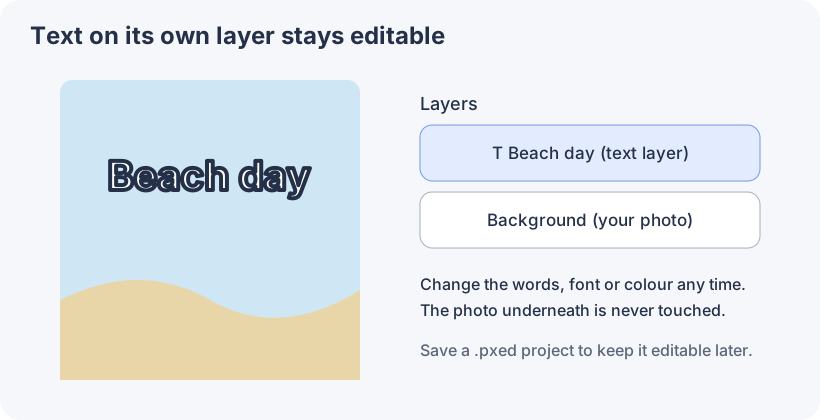
Put a caption, a title or a price on a picture in a few clicks. Text in Photostr sits on its own layer, so you can change the words, font or colour later without touching the photo.
Photostr is a free online Photoshop alternative that runs in your browser. There is no account to make, and your photos stay on your device.
1. Open your photo
Go to Photostr, choose Open from computer and pick a photo, or drop it onto the page. The photo stays on your device.
2. Choose the Type tool
Click the T in the toolbar or press T. Before you click on the photo, set the font, size and alignment in the bar along the top. To pick a colour, click the top colour square in the toolbar. Press X to swap between black and white.
3. Click and type
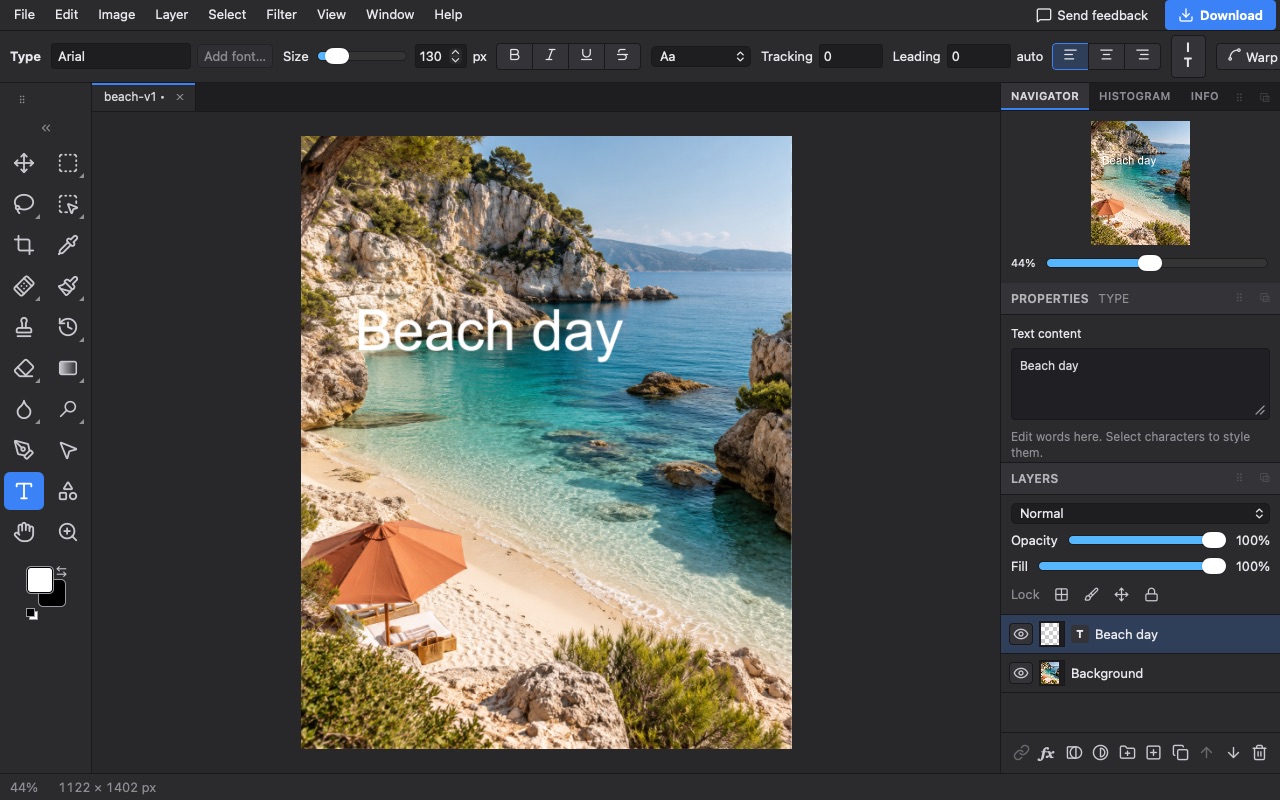
Click where the text should start and type. Press Apply when you are done. A new text layer appears in the Layers panel, named after your words.
4. Move and fine-tune it
Choose the Move tool (V) and drag the text into place. To change the words later, select the text layer and edit them in Text content in the Properties panel, or click into the text with the Type tool.
5. Make it easier to read
Text on a busy photo can get lost. With the text layer selected, choose Layer → Layer Style → Drop Shadow or Stroke to add a soft shadow or an outline. Choosing a clearer part of the photo helps too.
6. Save it
Choose File → Export As and pick JPEG for a photo or PNG for a graphic. To keep the text editable for next time, also choose File → Save to download a .pxed project.
Questions
Can I use my own font?
Yes. Choose Add font in the Type tool bar to load a font file from your computer. It is used on your device only.
Why can I not edit the text any more?
It may have been merged into the photo, or you are editing an exported JPEG or PNG. Open the .pxed project instead, where the text layer is still separate.
Will my text look the same in a PSD?
Supported text layers stay editable when you save as PSD. Another editor may swap a font it does not have, so check the result there.
Reviewed .