

Make a transparent PNG
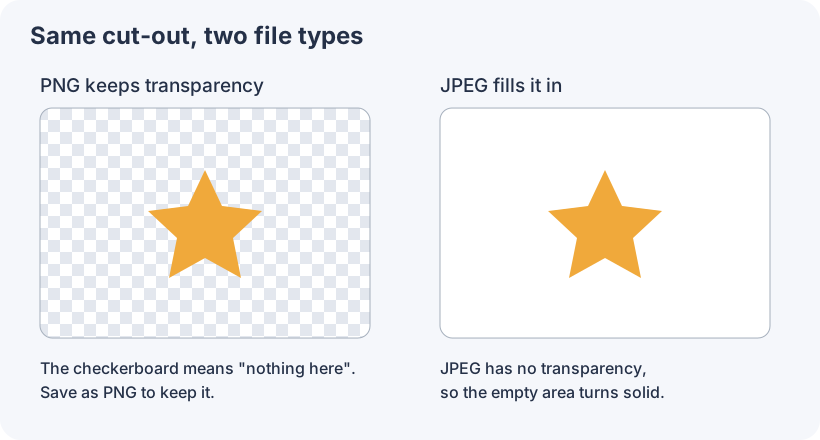
A transparent PNG has no background, so it sits cleanly on a website, slide or product page. Photostr can remove a photo’s background or clear a plain logo background, then save a PNG that keeps the transparency.
Photostr is a free online Photoshop alternative that runs in your browser. There is no account to make, and your photos stay on your device.
For a photo: remove the background
On the start screen, choose Remove background and pick your photo. Photostr finds the subject and hides the rest. You can also open the photo first and choose Layer → Remove Background. Both run on your device.

Tidy the edge
Use Erase to remove a leftover patch and Restore to bring back something that was cut off, such as a strand of hair. Zoom in to check the edge, then look at it at normal size too.
For a logo on a plain background
Choose the Magic Wand (W) and click the plain background, often white. Then choose Edit → Clear or press Delete. Click any enclosed gaps, such as the inside of an O, and clear those too. Choose Select → Deselect when you are done.
Export as PNG
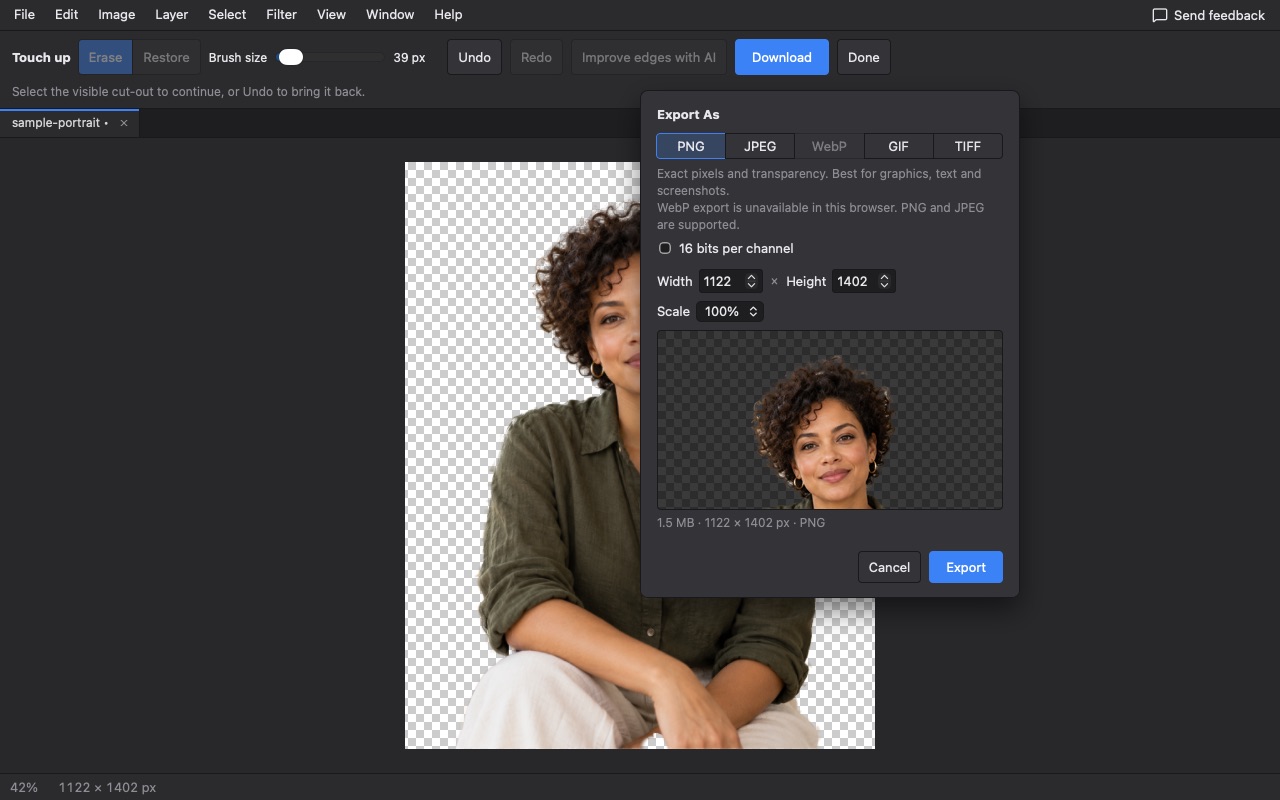
Press Download after a background removal, or choose File → Export As and select PNG. The preview shows the checkerboard where the image will be see-through. Do not choose JPEG, because it cannot store transparency.
Questions
Why does my PNG have a white background?
Either a background layer is still visible, or it was saved as JPEG. Hide any background layer in the Layers panel and export again as PNG.
Is my photo uploaded to remove the background?
No. Background removal runs in your browser on this device.
Can I make a transparent WebP instead?
Yes, where your browser supports WebP export. WebP also keeps transparency and is often smaller than PNG.
Reviewed .